Importing CSV Data
Supported Formats
QuanTest supports the following CSV formats out of the box.
| Data Source | Where to Download |
|---|---|
| SBI Securities (HYPER SBI 2) | Instrument page → Chart → Historical Data |
| Rakuten Securities (MarketSpeed II) | Instrument info → Chart → CSV Download |
| Yahoo! JAPAN Finance (VIP Club) | Price History → CSV Download |
| Investing.com | Instrument page → Historical Data → Download CSV |
| Yahoo Finance (US) | Instrument page → Historical Data → Download |
| Custom CSV | Any CSV (column mapping required) |
Import Steps
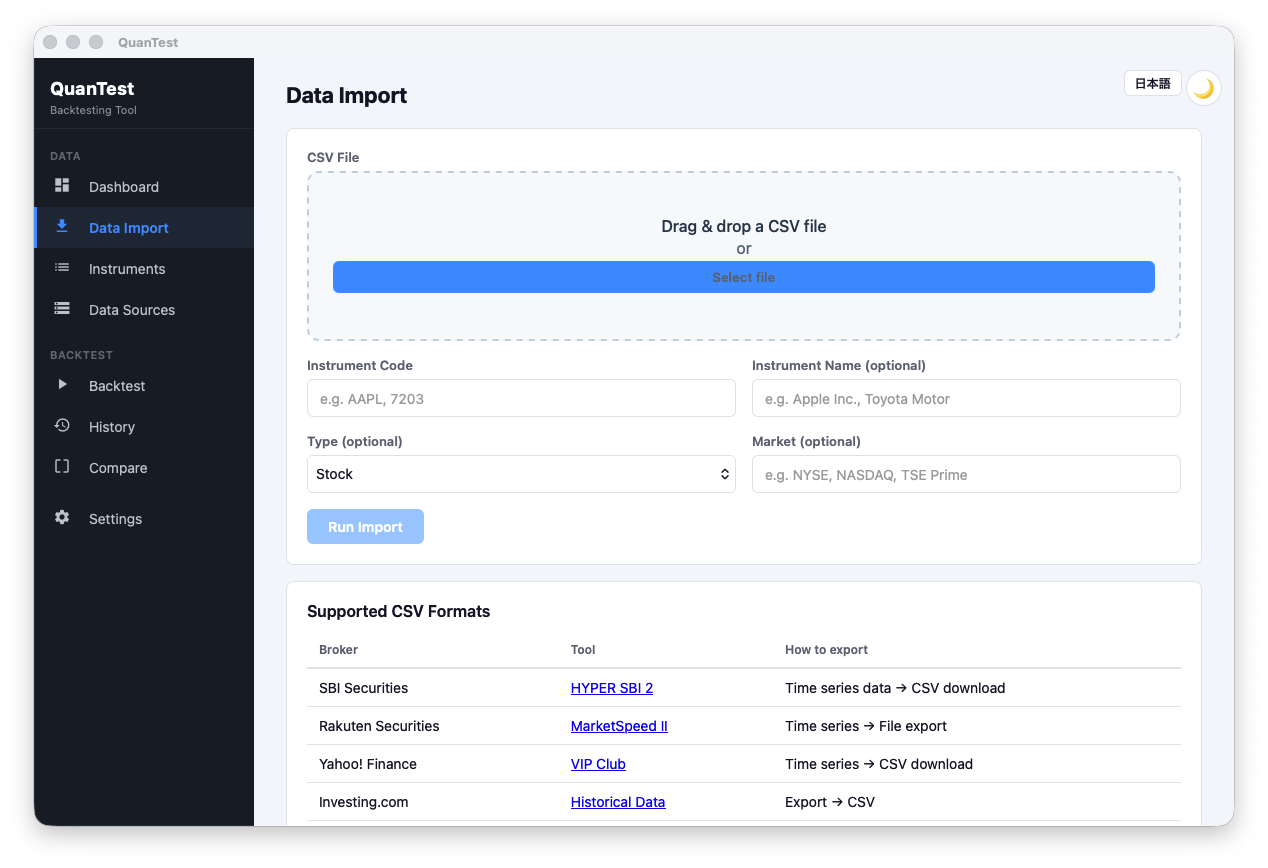
1. Open the Data Import screen
Click “Data Import” in the left menu.
2. Select your CSV file
Drag & drop the CSV file onto the drop zone in the center of the screen, or click “Select File” to browse.
3. Enter instrument information
| Field | Description |
|---|---|
| Ticker | e.g., 7203 (Toyota Motor). Required. |
| Name | Optional. Displayed as the ticker if left blank. |
| Type | Select from: Stock / ETF / REIT / Other. |
| Market | Select from: TSE Prime / Standard / Growth / US, etc. |
4. Confirm the format
QuanTest reads the CSV headers and automatically detects the format. If successful, it shows something like “Format: SBI Securities HYPER SBI 2”.
If the format cannot be detected (Custom CSV): A column mapping panel appears. Map each column to Date, Open, High, Low, Close, and Volume.
5. Run the import
Click “Import”. A diagnostics panel appears when complete.
Reading the Diagnostics Panel
| Field | Description |
|---|---|
| Detected format | The CSV format that was identified |
| Estimated market | The market auto-detected from the data |
| Date range | Start and end dates of the imported data |
| Bar count | Number of trading days imported |
| OHLC integrity | Validates that High ≥ Open, Close, Low |
If everything looks good, click “Set Up Backtest” to go directly to the backtest configuration screen.
Notes
- Re-importing the same ticker appends new data rather than overwriting (duplicates are removed automatically).
- Too little data may prevent some strategies from running. At least 1–3 years of data is generally recommended.